SSL Certificate Management
By default, XLServer is shipped with a self-signed SSL certificate.
You can either regenerate a new self-signed certificate through the CLI, or import your own trusted certificate (authority-signed) from the web console.
Regenerate Self-Signed Certificate via CLI
You can use the CLI certificate menu to generate a new self-signed certificate.
certificate generate

Manage Certificates from Web Console
- Log in to the XLServer Web Console as Administrator.
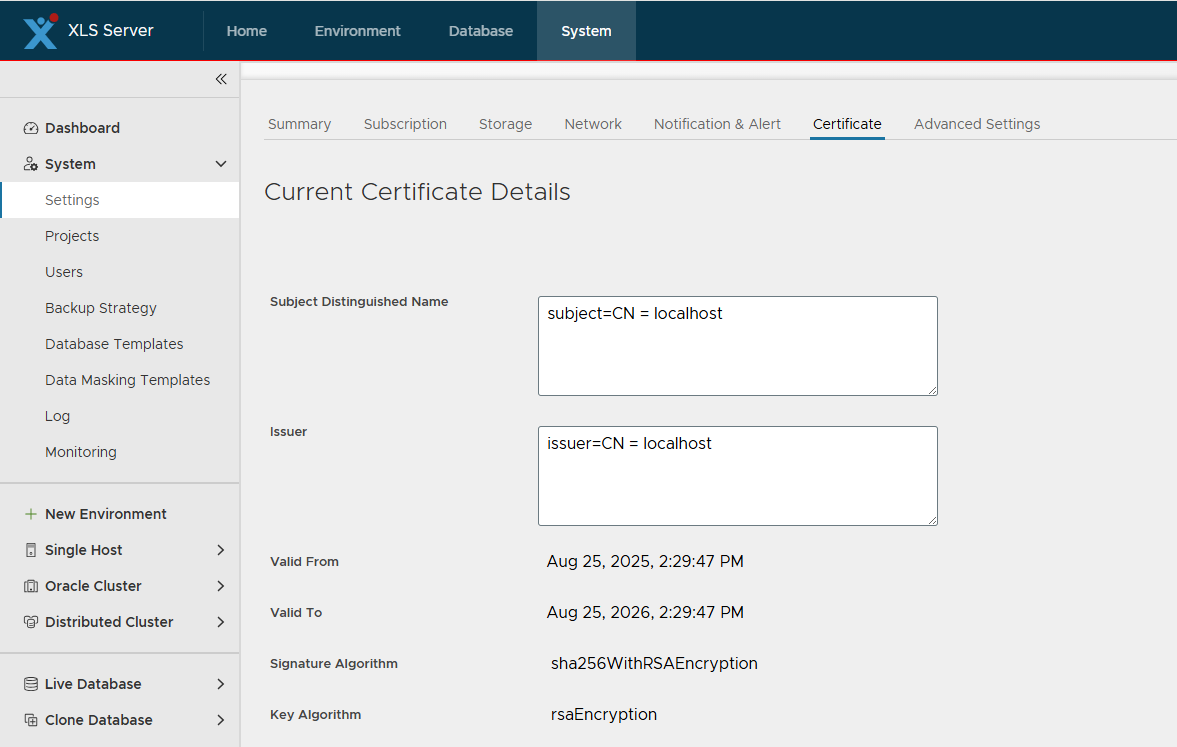
- Navigate to the System menu.
- Open the Certificate tab to view the current certificate details.
Import Custom SSL Certificate
To replace the default self-signed certificate with your own trusted certificate:
-
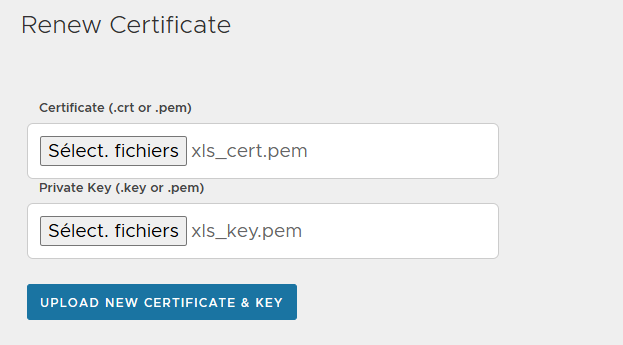
In the Certificate tab:
- Browse and select your certificate file (
.crtor.pem) in the Certificate field. - Select the corresponding Private Key in the Private Key field.
- Browse and select your certificate file (
-
Click on UPLOAD NEW CERTIFICATE & KEY to apply the new certificate.
⚠️ Notes:
- Ensure that the certificate and private key match, otherwise the upload will fail.
- After uploading, XLServer services will use the new certificate immediately.